

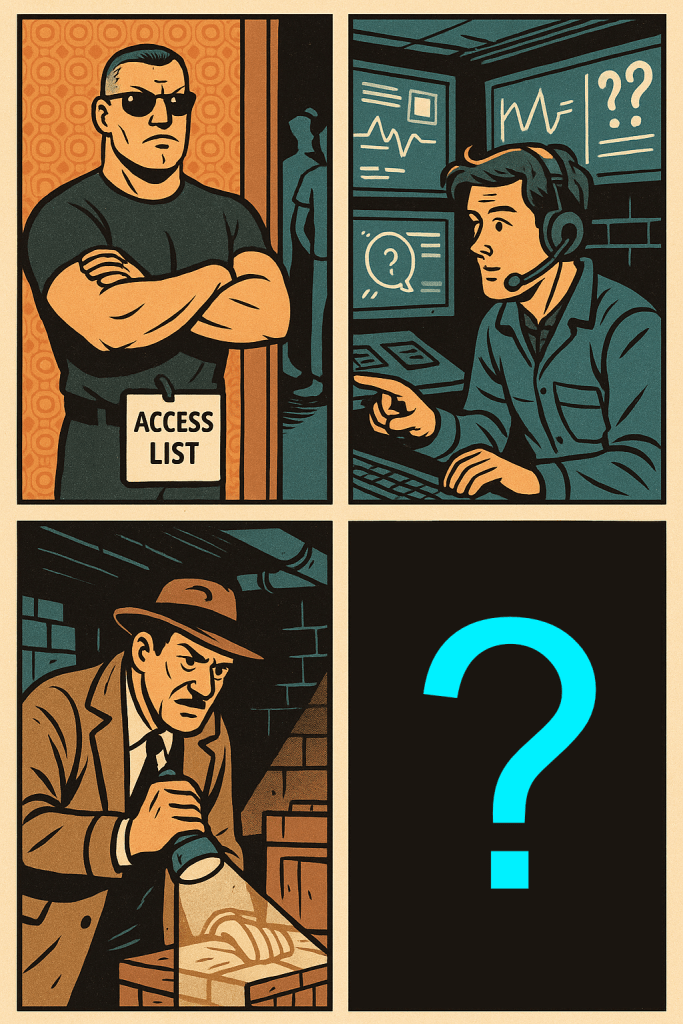
We’re really starting to build a world here, aren’t we? We’ve already got a few characters on the payroll: our bouncer, standing at the door checking the list. Our guy in the chair, glued to the monitors, watching for anything “weird.” And our grizzled private investigator, digging through the basement logs looking for clues.
Today, we’re introducing another character to the cast – one who doesn’t let just anyone walk around swinging a hammer.
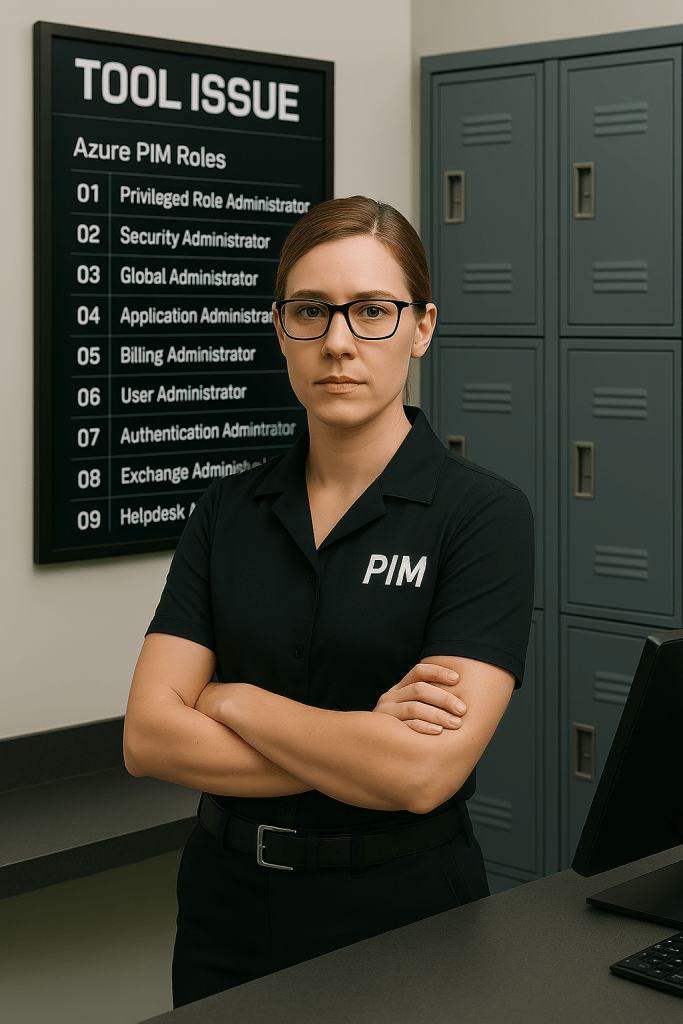
I’m talking about Privileged Identity Management – PIM for short. She’s the no-nonsense lady who keeps the toolboxes locked up until someone actually needs them. Not everyone needs the chainsaw. And even the ones who do? They don’t need it all the time.
Privileged Identity Management is how you lock down your Azure environment by controlling who gets access to high-privilege roles – and when. So even if an attacker gets through the bouncer, dodges the cameras, and slips past our guy in the chair… they still don’t get to make a mess unless they check out the right toolbox. And guess what? She’s watching the clock.
Let’s bring it back to our restaurant-nightclub hybrid world. Staff have different responsibilities. Some are serving drinks. Some are managing the point-of-sale system. Someone’s probably thumping the printer in the back room (shoutout to Office Space). Everyone’s got a job – and they need the tools to do it. But do they need every tool all the time? Nope.
If I’m working on the POS system, I probably shouldn’t be messing with the security cameras. That’s where PIM comes in.
Who Gets the Toolbox?
PIM is pretty straightforward: it manages access to privileged roles – roles with serious capabilities. Think “keys to the kingdom” stuff.
Here are some of the big ones:
| Role | What They Can Do |
| Global Administrator | Full control over Azure and Microsoft 365. Basically, The Boss. |
| Privileged Role Administrator | Manages PIM and admin assignments. Gives out roles and turns PIM on/off. |
| Security Administrator | Full control over Defender, security policies, alerts, etc. |
| Compliance Administrator | In charge of DLP, eDiscovery, retention – aka Microsoft Purview. |
| User Administrator | Manages users, groups, and resets passwords. |
| Groups Administrator | Creates and manages Microsoft 365 groups. |
| Application Administrator | Manages enterprise apps, permissions, and consent. |
| Cloud Application Administrator | Like the above, but more restricted. |
| Helpdesk Administrator | Can reset passwords and do limited support. |
| Authentication Policy Administrator | Manages MFA and sign-in methods. |
| Intune Administrator | Manages devices and apps through Intune. |
| Global Reader | Not technically an admin, but has full read-only access. Great for reconnaissance… if you’re into that. |
There are more, but these are the ones you really want under lock and key.
So in our metaphorical world, PIM is the store manager. She keeps the tools in the back. You can borrow them – but you have to say why, and she’s timing you. No hoarding hammers. You want it again later? Ask nicely.
Just-In-Time Access: Azure’s Take on “Use It and Lose It”
PIM enforces Just-In-Time (JIT) access. That means you don’t get a privileged role unless you ask for it – and even then, you only get it for a limited time.
By default, you can activate most roles for up to 8 hours, but you can set shorter durations (in 30-minute increments).
The idea is simple: no one needs to be Global Admin 24/7. You’re not fixing servers in your sleep. You’re working a shift. Let the role clock out when you do.
This eliminates standing access – the equivalent of leaving a master key under the welcome mat. Instead, users justify what they need, get what they need, and then that access expires.
Approvals, Reviews, and Alerts, Oh My
Look, if you want the master toolbox – the one with the rotary saw, the soldering iron, and that weird key that opens something – you better have a good reason. PIM doesn’t just hand those out like candy.
Instead, it throws up a velvet rope:
- First, you submit a request.
- Then, someone else (a fellow admin, maybe the Security Lead, or your skeptical team lead who always asks, “Why now?”) reviews and approves it.
- Only then do you get your hands on the gear – and only for a set amount of time.
This isn’t about bureaucracy for bureaucracy’s sake. This is intentional friction. It’s there to slow things down just enough that bad actors – or well-meaning folks making bad decisions – hit a wall before they can do any real damage.
And if you’re worried this slows down operations, remember: you can tailor the approval flow. For high-trust roles, maybe approvals aren’t needed. For sensitive ones, like Key Vault Contributor or Privileged Role Admin, you might want multi-layer approvals or require justifications.
Let’s say someone tries to activate the Global Admin role at 3:00 AM on a Saturday, with a justification that just says, “just testing something.”
Yeah… no.
PIM gives you a chance to pause and say, “Wait. Should this be happening right now?”
Logs & Alerts: Who’s Watching the Watchers
Remember our guy in the chair? He lives for this stuff.
Every time someone activates a role, requests approval, or has a request denied, it’s logged. PIM is a detail-oriented librarian: tagging the user, noting the role, recording the time–every move is logged. All that data doesn’t just sit around either – it can be piped into Microsoft Sentinel, Defender XDR, or your favorite SIEM (looking at you, Splunk fans).
From there, you can set up alerts:
- “Let me know anytime someone activates a Global Admin role.”
- “Page me if someone accesses Key Vault during non-business hours.”
- “Send a toast notification if someone suddenly starts using a role they’ve never touched before.”
These logs are your audit trail. Not just for internal visibility, but for external accountability. If the auditors come knocking – or something goes wrong – you can rewind the tape and say, “Here’s who did what, when, and why they said they needed it.”
And better yet? You can automate the escalation. Someone trips a wire, and an automated workflow kicks off: revoke access, notify SecOps, flag it for review. Suddenly your incident response isn’t just reactive – it’s proactive.
The Toolbox Audit: Who Still Has the Keys?

Okay, here’s where things get a little uncomfortable: you need to check your closet.
Just because someone could activate a role, doesn’t mean they still should. Azure PIM gives you a great tool with eligible roles, but if you’re not regularly pruning that list, you’re just collecting digital cobwebs.
Think of it like this: You gave someone a toolbox six months ago “just in case.” But they never used it. The project ended. Maybe they even left the team… or the company. Meanwhile, they’re still walking around with a backstage pass.
That’s how environments drift. That’s how risk creeps in.
PIM supports Access Reviews, where you can:
- Automatically send review prompts to role owners or managers.
- See usage history (e.g., “This person hasn’t activated their role in 90 days.”).
- Auto-remove access when it’s no longer justified.
Use it. Make it a monthly habit to inventory what roles are being used, by whom, and when. For more thorough access reviews, quarterly or semi-annual checks are ideal – especially for Global Admin and other top-tier roles.
You’ll thank yourself when the compliance report is due, or when your internal security team starts asking questions. Better yet, you’ll already have the answers because you’ve already done the homework.
Think of it as PIM hygiene – brush regularly (remove stale roles), floss with access reviews, and you won’t need a root canal during audit season.
Wrapping Up: Let Her Do Her Job
PIM might seem like a gatekeeper. Having to check out your hammer? No fun. Having to tell someone what you’re doing with it? Downright annoying, especially when you’re just trying to fix something and move on with your day. But this isn’t about red tape for the sake of red tape – it’s about knowing who has what, when, and why. It’s about structure in a world that thrives on access and speed.
That no-nonsense lady in the back room? She’s not trying to make your life harder. She’s trying to make sure everyone gets to keep their jobs. She’s trying to make sure that, when something goes wrong – and something will go wrong – you have a clean story to tell. You know who had the hammer. You know how long they had it. And you know they had a reason.
Think of PIM as your insurance policy with a clipboard. She’s documenting everything, holding people accountable, and making sure that what could’ve been a crisis is just a logged event and a teachable moment. She won’t stop someone from making a mistake, but she’ll make it a lot harder for that mistake to become catastrophic.
And perhaps most importantly, PIM gives your environment room to breathe – providing access only when needed. It helps you reduce your exposure without slowing down your people. That’s not just security. That’s maturity. That’s a sign that your organization doesn’t just react to risk – it plans for it, contains it, and learns from it.
So let her do her job. Respect the process. Because the moment you stop checking out the tools properly, is the moment you start running around with a chainsaw in the dining room – and we all know how that ends.
 Xenodyne Technologies
Leave a comment